

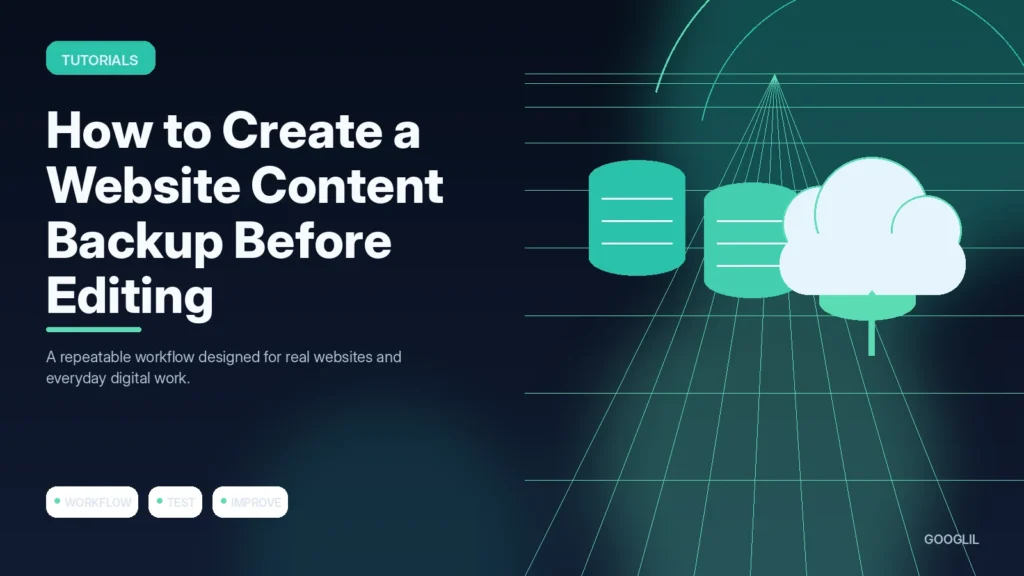
Before a meaningful website edit, protect the database, uploads and configuration needed to reverse the change. Saving a copy of one page’s HTML is not a complete WordPress backup.
1. Export or back up the database
Check whether important information can be exported in a useful format. Easy exit reduces lock-in and makes recovery or migration more realistic.
2. Copy uploaded files
Back up the uploads or media directory when the edit could affect files, image paths or the site structure. Confirm the copy contains recent media and can be accessed independently from the production hosting account.
3. Record active theme and plugins
Keep the plugin set intentional. Prefer actively maintained tools with a clear purpose and remove overlapping or abandoned components rather than accumulating alternatives.
4. Verify the backup can be restored
Create a restorable copy, keep it separate from the thing you are changing, and record enough information to reverse the work if the result is unexpected.
Know which parts hold the site state
For WordPress, content and settings live mainly in the database while media lives in wp-content/uploads and code or configuration may live in themes, plugins and server files. Use a host or backup tool that captures the required components, store a copy separately and record the current theme/plugin versions when the edit involves code. A backup is not proven until you know how it would be restored.
Before changing a theme
Create a full site backup, download or copy the customised theme, note the active theme and important plugins, and capture screenshots of key pages. Make the change on staging when possible, then keep the backup until production has been tested.
Practical example
Before changing a theme or making a major content migration, capture both the database and the files that hold media, themes, plugins and configuration. Keep a copy away from the live hosting account and note the active versions. Then test restoring at least part of the backup in a safe environment. A ZIP file that has never been opened or restored is evidence that a backup job ran, not proof that recovery will work.
Back up the exact content and configuration your edit could affect
Before a significant website edit, identify what must be recoverable. A WordPress page may depend on database content, media files, theme settings, custom CSS and plugin configuration. Exporting only the visible text may not be enough. For small content changes, WordPress revisions can help; for structural or bulk changes, create a database and file backup as well.
Store the backup away from the live site's public directory and label it with the date and reason for the change. If your host provides snapshots, confirm retention and restoration steps instead of assuming they cover every scenario. For migrations or large edits, download an independent copy when practical. Test restoration on staging for changes where failure would be costly.
- Capture the current URL structure before redirects or permalink changes.
- Export reusable builder templates or theme settings when they are not included in normal content exports.
- Keep credentials and backup archives protected because they can contain sensitive data.
- Delete obsolete local backup copies securely after the retention period you actually need.
A backup process is complete when you know how to restore the affected content. The existence of a ZIP file alone does not prove recovery will work.
What to avoid when working on a website content backup before editing
- Downloading only the page HTML.
- Storing one copy on the server.
- Editing before verification.
Quick checklist for a website content backup before editing
- Export or back up the database.
- Copy uploaded files.
- Record active theme and plugins.
- Verify the backup can be restored.
Verification resources
For current implementation details, check the relevant official documentation:
Back up the exact content and configuration your edit could affect
Before a significant website edit, identify what must be recoverable. A WordPress page may depend on database content, media files, theme settings, custom CSS and plugin configuration. Exporting only the visible text may not be enough. For small content changes, WordPress revisions can help; for structural or bulk changes, create a database and file backup as well.
Store the backup away from the live site's public directory and label it with the date and reason for the change. If your host provides snapshots, confirm retention and restoration steps instead of assuming they cover every scenario. For migrations or large edits, download an independent copy when practical. Test restoration on staging for changes where failure would be costly.
- Capture the current URL structure before redirects or permalink changes.
- Export reusable builder templates or theme settings when they are not included in normal content exports.
- Keep credentials and backup archives protected because they can contain sensitive data.
- Delete obsolete local backup copies securely after the retention period you actually need.
A backup process is complete when you know how to restore the affected content. The existence of a ZIP file alone does not prove recovery will work.
Frequently asked questions
Is a database export enough?
Not if you need uploaded files or custom code. Match the backup scope to what could be changed or lost.
Where should I store the backup?
Keep at least one copy outside the live web server or account so a server failure does not remove both the site and backup.
How long should I keep it?
Keep pre-change backups until the new state has been verified and your normal retention policy provides suitable recovery points.
Keep Learning
Continue with these related guides: