

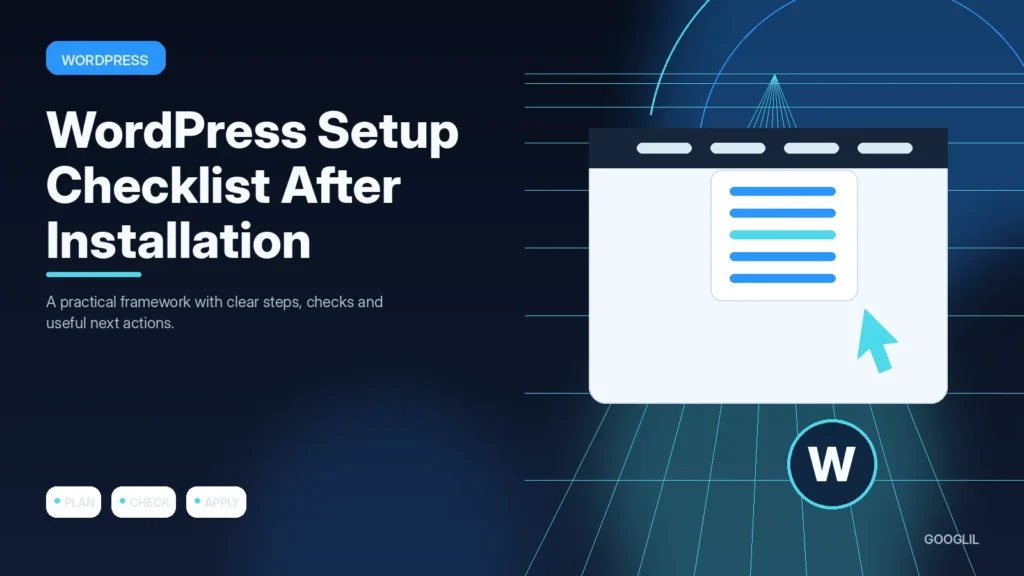
A fresh WordPress installation is only the starting point. Before publishing, configure identity, URLs, accounts, essential pages, backups and a small plugin set so the site begins with fewer avoidable maintenance problems.
1. Set permalinks and site details
Set the site title, timezone, administrator email and HTTPS URLs, then choose the permalink structure before publishing many pages. Changing URL structure later can create avoidable redirects and broken links, so establish a stable format at the start.
2. Create essential pages
Create the pages visitors and search engines need to understand the publication, such as About, Contact, Privacy, Terms and any relevant editorial or disclosure pages. Add them to sensible navigation and make sure contact methods actually work.
3. Install only needed plugins
Keep the plugin set intentional. Prefer actively maintained tools with a clear purpose and remove overlapping or abandoned components rather than accumulating alternatives.
4. Configure backups and security
Create a restorable copy, keep it separate from the thing you are changing, and record enough information to reverse the work if the result is unexpected.
Finish the foundation before designing everything
Set the site title, timezone and permalink structure, remove sample content, create essential legal and contact pages, and make sure the administrator account uses a unique username and strong authentication. Install only plugins with a clear purpose, configure backups, verify HTTPS, check search-engine visibility settings and confirm the site icon, navigation and email delivery.
A sensible first-hour sequence
Configure general settings and permalinks first, then users and backups, then essential pages and navigation. After that install the theme and only required plugins. This order makes it easier to identify which change caused a problem.
Practical example
After installing WordPress, change the permalink structure before publishing, create the essential pages, review the administrator accounts, confirm backups, and remove plugins or themes you do not need. Then test the site while logged out and on a phone. Doing this before content grows prevents small setup mistakes from spreading across dozens of pages or becoming harder to reverse later.
Configure WordPress foundations before adding lots of content
After installation, set the basics that affect every future page. Confirm the site title, timezone, administrator email, HTTPS URL and permalink structure. Remove unused sample content, create essential policy and contact pages, and decide who needs administrator access. A clean initial setup prevents small defaults from becoming sitewide problems later.
Install only the plugins required for backups, security, performance, forms and the site's actual features. Configure backups before major customisation, then test a restore path. Check Settings > Reading so the site is not accidentally discouraged from search indexing when it goes live. Review discussion settings if comments are not part of the publication, and make sure a working 404 page and navigation structure exist.
- Use individual administrator accounts rather than sharing one password across people.
- Enable automatic updates selectively and keep a staging or backup path for changes that could affect layout or checkout.
- Set a site icon and consistent organisation information for branding and structured data.
- Test forms, transactional email and password reset delivery before relying on them.
Finish setup by testing the front end on mobile, checking the XML sitemap and making a fresh backup. The goal is a stable baseline that makes future troubleshooting easier.
What to avoid when working on WordPress setup after installation
- Keeping sample content.
- Using admin as a username.
- Installing overlapping plugins. Simplify to one primary approach first, prove it works, then add complexity only for a clear reason.
Quick checklist for WordPress setup after installation
- Set permalinks and site details.
- Create essential pages.
- Install only needed plugins.
- Configure backups and security.
Verification resources
For current implementation details, check the relevant official documentation:
Configure WordPress foundations before adding lots of content
After installation, set the basics that affect every future page. Confirm the site title, timezone, administrator email, HTTPS URL and permalink structure. Remove unused sample content, create essential policy and contact pages, and decide who needs administrator access. A clean initial setup prevents small defaults from becoming sitewide problems later.
Install only the plugins required for backups, security, performance, forms and the site's actual features. Configure backups before major customisation, then test a restore path. Check Settings > Reading so the site is not accidentally discouraged from search indexing when it goes live. Review discussion settings if comments are not part of the publication, and make sure a working 404 page and navigation structure exist.
- Use individual administrator accounts rather than sharing one password across people.
- Enable automatic updates selectively and keep a staging or backup path for changes that could affect layout or checkout.
- Set a site icon and consistent organisation information for branding and structured data.
- Test forms, transactional email and password reset delivery before relying on them.
Finish setup by testing the front end on mobile, checking the XML sitemap and making a fresh backup. The goal is a stable baseline that makes future troubleshooting easier.
Frequently asked questions
Should I leave ‘Discourage search engines’ enabled?
Use it only while the site is intentionally private or unfinished, and remember to remove it before launch after checking robots settings.
How many plugins are too many?
There is no fixed number. The issue is quality, overlap and maintenance burden rather than the count alone.
Do I need a child theme?
Use one when you plan to modify a parent theme’s code so updates do not overwrite those changes.
Keep Learning
Continue with these related guides: