

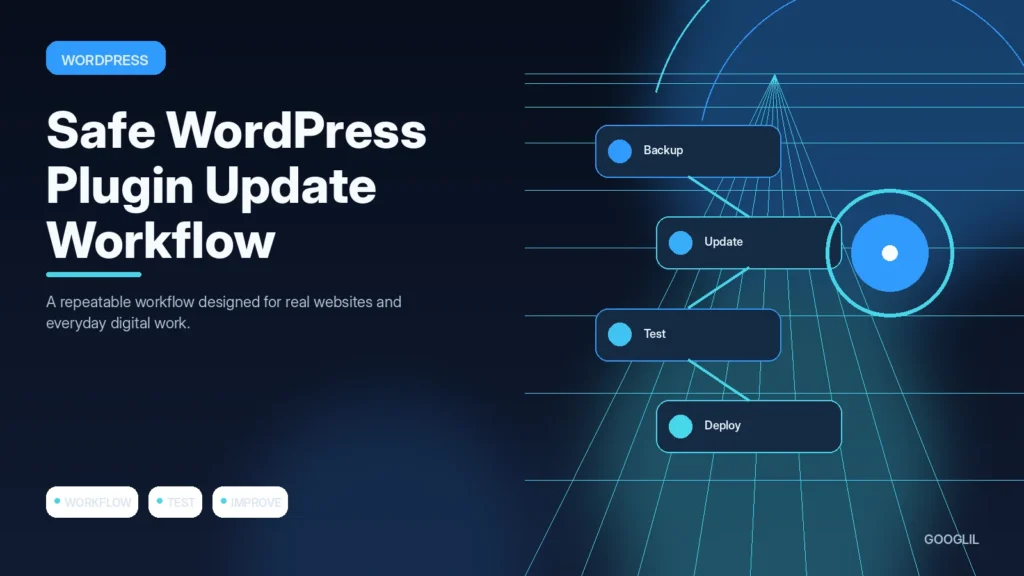
Plugin updates can contain important fixes, but a live site still needs a recovery plan. The safest workflow combines backups, release-note review and a short functional test rather than delaying updates indefinitely or applying everything blindly.
1. Create a backup
Create a restorable copy, keep it separate from the thing you are changing, and record enough information to reverse the work if the result is unexpected.
2. Review changelogs
Read the release notes for security fixes, breaking changes, compatibility notes and removed features before updating something that affects a live workflow.
3. Update on staging when possible
Use a staging copy for changes that could affect layout, checkout, forms, logins or other important flows, then repeat a short test on production after deployment.
4. Test forms and key pages
After updates, test the homepage, important templates, login, forms and any conversion path while logged out. Check both desktop and mobile and review the error log if behaviour changes, because an update can succeed in the dashboard while breaking a front-end dependency.
Know what you will test before clicking update
Create a recent restorable backup, review the plugin changelog and compatibility notes, and use staging for high-impact components such as ecommerce, membership or form systems when possible. Update in manageable groups so failures are easier to trace. Test the front end, admin area and the specific feature the plugin controls.
A five-minute post-update smoke test
After updating a form plugin, open the main contact page, submit a test, confirm the success message and email delivery, then inspect the admin entry if one should be created. That targeted test is more useful than simply seeing that the homepage still loads.
Practical example
Before updating an important plugin, confirm that a current backup exists and read the changelog for major compatibility notes. Apply the update on staging when the site is business-critical, then test the pages and workflows that depend on that plugin. If the plugin handles forms, submit a real test form. If it handles caching, purge and retest. Record the previous version so rollback is practical rather than theoretical.
Treat plugin updates as small deployments
Plugin updates can include security fixes, compatibility changes and new behaviour, so the safest process is repeatable rather than fearful. Review the update notes for important plugins, confirm WordPress and PHP compatibility, and make a current backup before updating components that affect forms, security, caching, ecommerce or page building.
Update on staging first when the site is business-critical or the change is large. Otherwise update a small set, clear caches and test the exact features those plugins control. Check the front end, admin area, forms, login and scheduled tasks where relevant. If an error appears, use logs and the backup or previous plugin version instead of randomly changing multiple settings at once.
- Remove abandoned plugins rather than leaving them disabled indefinitely.
- Avoid downloading replacement plugin ZIP files from unofficial sources.
- Record major updates so later problems can be connected to a known change.
- Keep PHP and WordPress core supported because plugin compatibility depends on the wider stack.
A good update routine makes rollback predictable and reduces long periods on vulnerable versions. The target is current software with controlled risk, not avoiding updates entirely.
What to avoid when working on a safe WordPress plugin update workflow
- Updating everything blindly. Use a controlled test and keep a rollback path instead of applying the same change everywhere at once.
- Ignoring abandoned plugins.
- Skipping rollback planning.
Quick checklist for a safe WordPress plugin update workflow
- Create a backup.
- Review changelogs.
- Update on staging when possible.
- Test forms and key pages.
Verification resources
For current implementation details, check the relevant official documentation:
Treat plugin updates as small deployments
Plugin updates can include security fixes, compatibility changes and new behaviour, so the safest process is repeatable rather than fearful. Review the update notes for important plugins, confirm WordPress and PHP compatibility, and make a current backup before updating components that affect forms, security, caching, ecommerce or page building.
Update on staging first when the site is business-critical or the change is large. Otherwise update a small set, clear caches and test the exact features those plugins control. Check the front end, admin area, forms, login and scheduled tasks where relevant. If an error appears, use logs and the backup or previous plugin version instead of randomly changing multiple settings at once.
- Remove abandoned plugins rather than leaving them disabled indefinitely.
- Avoid downloading replacement plugin ZIP files from unofficial sources.
- Record major updates so later problems can be connected to a known change.
- Keep PHP and WordPress core supported because plugin compatibility depends on the wider stack.
A good update routine makes rollback predictable and reduces long periods on vulnerable versions. The target is current software with controlled risk, not avoiding updates entirely.
Frequently asked questions
Should automatic updates be enabled?
They can be appropriate for trusted low-risk components, but critical sites may need staged or monitored updates depending on the impact of failure.
What if an update breaks the site?
Use the rollback method you prepared: restore the plugin version or backup, then investigate compatibility before retrying.
What about abandoned plugins?
Replace plugins that are no longer maintained when a safe alternative exists; an abandoned dependency is a growing security and compatibility risk.
Keep Learning
Continue with these related guides: